
What the workspace changes
A workspace is the set of analysis views currently shown for your open logs. It does not change the logs, their boat identity, or the selected time range. Start with Track, then add a view such as Graph, Table, Start, or Start & Finish when it helps answer a specific question.
1. Show the views you need
1. Open at least one log from Library. 2. Open the view chooser: use Windows on web or desktop, the workspace panels control on a tablet, or Choose windows on a phone. 3. Select Track and one supporting view. 4. Return to the workspace and check that both show the same sailing period.
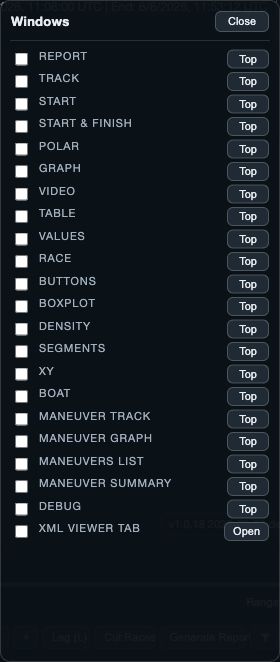
- Web and desktop: tick a view in Windows; use Top to bring an open view forward.
- Tablets: select a view from the workspace panels menu. Tablet views can remain open together.
- Phones: choose One window for a single view. Choose Two windows, select exactly two different views in display order, then select Done.
2. Arrange the views for the task
1. Put Track where you can see the course. 2. Place Graph, Table, or another comparison view beside it. 3. Keep the Time & Wind controls available at the bottom of the workspace. 4. Change the shared time range and confirm each view follows it.
On web and desktop, drag a window by its title bar, resize it from a corner, and use Top when another window covers it. On tablets, use the transient window controls to move, fit, change mode, or hide a view. On phones, views use the one- or two-window layout rather than freeform windows.
3. Keep or reset a layout
On web and desktop, open Settings, find Saved Window Layouts, enter a Layout name, and choose Save. Later, load a saved layout from the same area. Use Reset to Default for the standard layout or Restore Original Layout to discard saved layout changes.
Tablet workspace state is saved through the shared workspace owner after a completed move, resize, visibility, focus, or mode change. Phone two-view settings are saved only after the chooser commits a valid pair; divider changes are saved when the drag ends.
If the layout gets in the way
- A view is hidden: reopen the chooser and select it.
- A web or desktop view is covered: use Top in Windows.
- A phone pane is unsuitable: use its controls to Replace this window, Swap windows, or Show only this window.
- A two-pane phone layout is cramped: expand the pane you need, rotate the phone, or return to One window.
- A saved web/desktop layout no longer helps: reset it in Settings.