
Time and legs
- Left / Right arrow: move the end time backward / forward by one second. Hold Shift for 15-second steps.
- L: open or close the quick leg picker. While it is open, type a leg number, or A for all legs. Escape closes the picker.
- S: apply the suggested wind direction. Check its orientation before using wind-based results.
Track and filters
- A outside the leg picker: toggle Track automatic zoom, when Track is visible and logs are open.
- H: toggle the Track Top 3 setting.
- F: show or hide Filters.
- C with Filters foremost: remove the maneuver and rounding restrictions. Other filters remain. Outside Filters, C toggles Track percentile coloring when Track is visible.
- M with Filters foremost: keep roundings only and remove the maneuver restriction.
- R: reset filters while preserving the selected leg, then close the filter panel.
Screenshot shortcuts
- P: Track screenshot. G: Graph screenshot. D: Table screenshot. O: Polar screenshot.
- Q: run the Track, Graph, Table and Polar screenshot sequence.
- W: run the Boat, Boxplot and Table screenshot sequence.
Prepare the visible data, selection and settings before exporting. These commands produce view images; they do not save an editable sailing log. Browser download permissions and the available views can affect the sequence.
Desktop application menus
- Command+O on Mac / Ctrl+O on Windows: Import Logs.
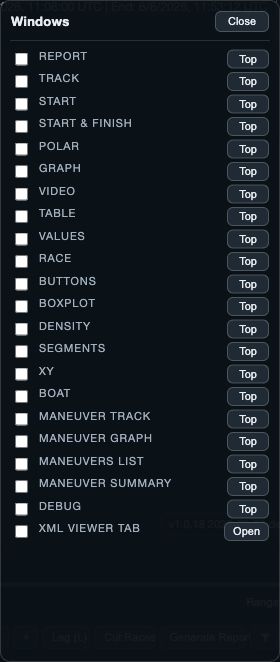
- Command+Shift+W / Ctrl+Shift+W: Analysis Windows.
- Command+, / Ctrl+,: Settings.
In a browser, these key combinations may belong to the browser itself. Use SailViewer’s on-screen commands there.