
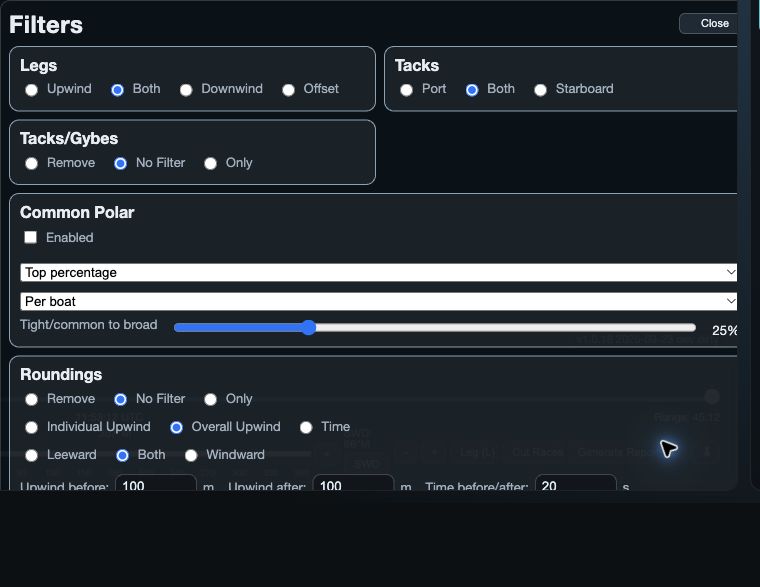
Filters are not Library selection
Filters narrow the samples used by compatible analysis views from the logs that are already open. They do not open or close logs, and they do not select Library rows for archive, edit or delete.
Start with the right open fleet and selected time interval. Then filter one question at a time: for example, compare upwind port tack with upwind starboard tack before adding a maneuver or value condition.
1. Build and apply a filter
On web/desktop, open Filters from the Time/Wind controls. Choose Legs, Tacks, Tacks/Gybes or Roundings to restrict sailing mode or events. Use Value Filters to add a condition based on an available metric, then choose Apply Value Filters.
On web/desktop, choose Apply to commit the current filter choices. Inspect Track, Graph, Table or another appropriate view to see whether the remaining samples answer the question you asked.
- Legs: Upwind, Both, Downwind or Offset.
- Tacks: Port, Both or Starboard.
- Tacks/Gybes and Roundings: Remove, No Filter or Only.
- Roundings also provide side and before/after distance or time context.
- Common Polar and value filters are advanced ways to reduce the set; introduce them only after checking a simpler filter.
2. Reset without guessing
On native, the panel groups Race and leg, Sailing, Value filters and Common Polar. Use Race, Leg or Race legs only to choose course scope; then Leg direction, Tack, Maneuvers and Roundings to choose sailing conditions. Add a Value filter only after checking that metric exists for your boats.
On web/desktop, Reset returns the advanced filter controls to their defaults and Remove All clears all filters. On native, use Clear. Use one of these before beginning a separate comparison, rather than leaving an old condition active by accident.
On native, discrete choices apply immediately, continuous adjustments apply after a short pause, and closing the panel applies the latest adjustment. Closing is not Cancel. Recheck the current Filter summary in exported context or the visible results after every meaningful change.
3. Reuse a metric view carefully
Value pickers can save a named preset, load it later, and exchange a selected list as text. Export Text presents one value name per line; Import Text accepts those names or a supported list form, then retains only values available in the current picker.
In the multi-value picker, confirm with Done on web/desktop or Apply on native to commit the selection. Cancel restores the selection that was present when that picker opened. A preset changes selected metrics, not the open fleet, time selection or global filters.