
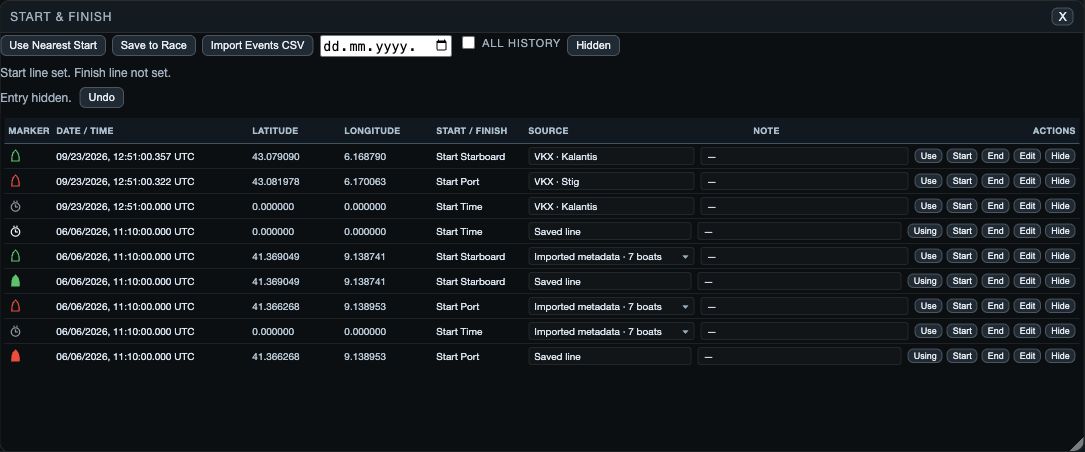
What Lines & events holds
Start & Finish is the place to review imported and manually added start or finish observations for the selected day. A line needs both ends before it is complete. A Start Time can be saved without a position, but it is not enough to define a crossing line.
1. Review the available entries
1. Open Start & Finish. 2. Review the entries for the open-log days. 3. Use the day or History controls if you need another day or older observations. 4. Select the entry you intend to use and inspect its time and position. 5. Use Use Nearest Start only after checking that the nearby start is the race you mean.
- Use Hidden to review entries that were hidden rather than deleted.
- Use Undo immediately after hiding an entry if it was the wrong one.
- Use Load More when the history list says more entries are available.
2. Add or edit an observation
1. Choose Add Entry. 2. Choose the observation type, such as a start end, finish end, gate, or Start Time. 3. Set the time and position from a boat or by entering coordinates. 4. Check the label and day. 5. Save the entry, then review it in the list.
Use a boat position only when the boat was at the intended mark or end at that time. For manual coordinates, check the coordinate source and time zone before saving. A precise-looking point from the wrong boat or instant creates misleading crossing results.
3. Build the race geometry
1. Confirm that the intended start or finish ends are present and correctly placed. 2. Use the entry controls to mark the relevant observations for use. 3. Choose Save to Race. 4. Confirm that the start and finish are complete before relying on them in race analysis or a line-crossing cut.
When a race needs a separate finish line, define and check both finish ends rather than reusing the start line. For a start-line finish, check both start ends and then select the appropriate line-crossing method in Cut Race.
If an entry does not look right
- Wrong day or missing entry: change the day or History selection, then refresh or load more.
- Entry is hidden: open Hidden and restore it.
- Nearest start is wrong: do not save it to Race; select or add the correct observation instead.
- Line is incomplete: add or correct the missing end before choosing a line-crossing cut.
- Wrong time range: use the entry action to set the shared Start or End time, then check it in Time & Wind.
- The cutter cannot use a line: verify that its two endpoints are valid and that the intended geometry was saved to Race.