
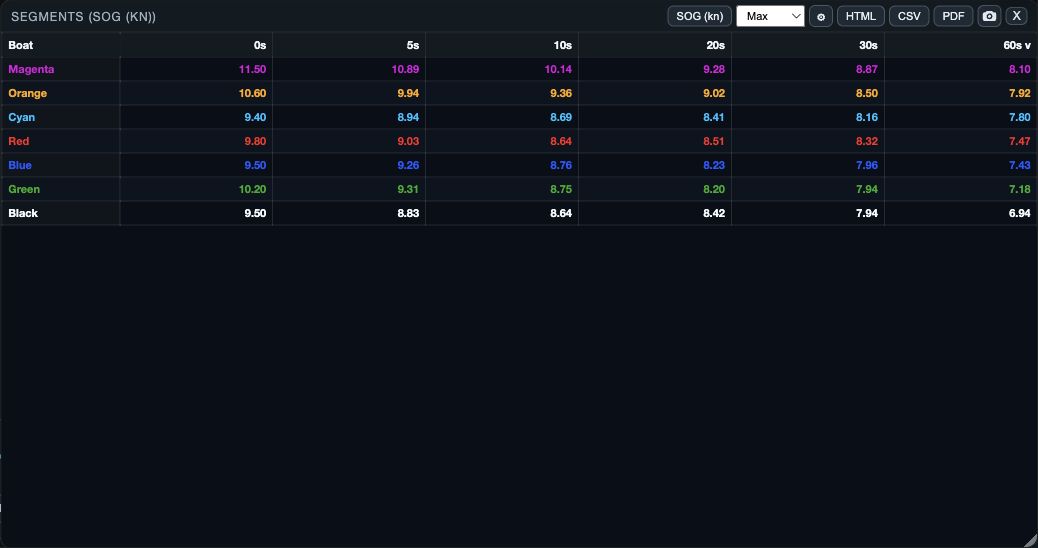
What Segments compares
Segments finds each boat’s highest or lowest instant value and its best result over each chosen duration. The cards or table compare equal lengths of sailing time within the selected interval.
1. Set up the comparison
1. Open Segments from Windows on web/desktop, or the workspace panels menu or Choose windows on native. 2. Choose Value. 3. Choose Maximum or Minimum. 4. Set a time range that represents the same sailing situation for every boat. 5. Read the instant result and each duration before ranking a boat.
Use Maximum for a high-value comparison such as top speed. Use Minimum only when a lower value is better for the question you are asking. The mode changes the meaning of the ranking, so include it when sharing a result.
2. Choose durations and ordering
1. Open Settings. 2. Set Seconds as a comma-separated list of durations you need. 3. Choose Boat colors or White / black text. 4. Choose the sort value and direction. 5. Choose Done when the settings read correctly. Use Restore Defaults to return to the standard setup.
On phones, long-press a boat name or duration card to change the active sort. On tablets, the comparison is presented as a fleet table. Sorting changes the order in which the results are shown; it does not change the segment calculations.
If a result is unexpected
- No result: confirm the metric exists in Values and the selected time range has qualifying data.
- A duration has no meaningful comparison: choose a shorter duration or widen the selected interval.
- The wrong boat appears first: check Maximum/Minimum and the active sort heading or long-press sort choice.
- Text is hard to read: switch between Boat colors and White / black.
- A short burst dominates the result: compare a longer duration and inspect it in Graph or Table.
- Settings are too experimental: choose Restore Defaults, then change one control at a time.