
Know what you are saving
The selected time interval is separate from Library selection and filters. A time interval chooses the part of every open log to save. Library selection is for record management.
On web/desktop, choose Save Selection in the Time/Wind controls. The Save dialog lets you confirm Event, Title, Comments, Venue, Team and Boat Number, then choose Save. It creates a new SW2 log for every open boat using the selected start and end time.
Web/desktop Save Selection can offer Save only filtered data. Leave it off to save the whole selected time range. Turn it on only when you intend the new logs to contain the current filtered intervals; a boat with no matching interval is skipped.
2. Exporting stored logs is different
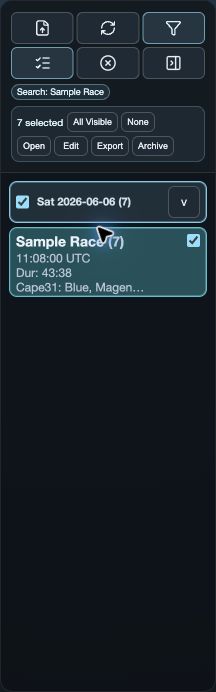
Web/desktop Manage mode includes a Library Export action for selected records. This is a stored-log operation, separate from Save Selection and from an analysis-window image or document export.
On mobile, use Library to open, close, edit, archive, restore and delete logs. This guide does not claim a matching mobile bulk Library export.
3. Save a log segment on iPhone, iPad or Android
Open the boats you need and choose a valid time range. In the More Time and Wind actions menu, choose Save Log Segment. SailViewer makes one SW2 segment for each open log covering that range, then opens the system share sheet.
If a boat has no samples in the selected interval, it is reported as a failure while other boats may still be available to share. Dismiss the share sheet to cancel sharing; check the intended destination before sending it.
4. Check the result before sending it
- Confirm the title, boats, selected time interval, units and wind context shown in the result.
- Use a screenshot when the visual layout matters; use an available document format when the recipient needs a table or report-like view.
- If the system save or share sheet is cancelled, treat that as no completed share and retry only after rechecking the destination.