
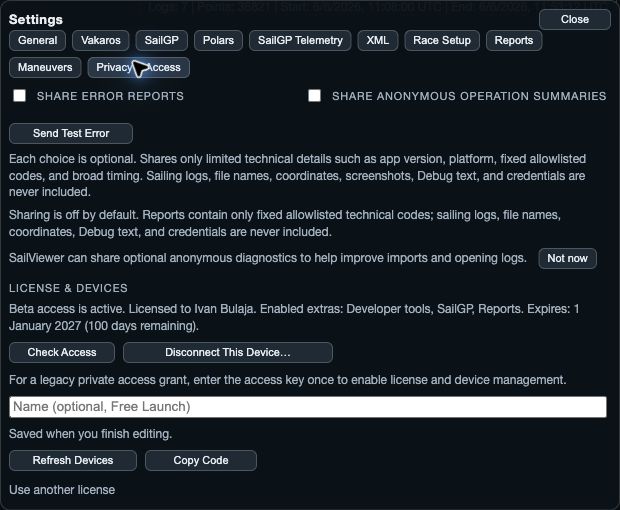
Read your access status
License & Devices shows the access currently attached to this device, including its status and expiry when present. Use the status shown in the app; old Android activation instructions do not describe this version.
- In the public mobile app, Check access verifies access online. Check for updates opens the store page. Keep the Support reference when contacting support.
- Ordinary non-folding phones remain free. All tablets, foldables and computers require a subscription from 1 January 2027 at 00:00 UTC.
- Other devices need a successful online check within seven days. Expired access blocks ordinary use but keeps your sailing files. The billing update will provide purchase and restore.
- Developer builds and direct desktop releases may expose additional license and device controls.
Installation choices are available from Get SailViewer in the website navigation. Use the link for your platform rather than an old Android package.
Disconnect or remove a device
Disconnect this device releases the license slot for the device you are using. Remove device releases another listed device. Confirm the named device in the dialog, or choose Cancel.
Send a useful problem report
- 1. On native apps, open Diagnostics & Support in Settings. On desktop, use Help → Report a Problem.
- 2. Describe what you did, what you expected, and what happened instead. Include the app version, platform, affected screen, and visible error.
- 3. In the native report form, add Contact if you want to provide a way to reply. Review the diagnostic trace preview when shown.
- 4. Choose Send report and read the result. A pending report is not the same as a confirmed sent report; use the offered retry action if needed.
Sharing error reports and basic usage summaries are separate settings. They do not send your sailing logs or GPS tracks. On iOS, Clear unsent diagnostics removes queued diagnostic data; this is not a command to delete sailing logs.
Share an original file separately
If support needs the source recording, use Choose original file on iOS or Select original file to share on Android. Check the selected filename, then choose the separate share action and destination in the system share sheet.
Choosing a file does not attach it to the problem report. The system share step is separate; cancelling it leaves the original unchanged. A source file can contain boat identities and recorded positions, so choose the recipient deliberately.