
What you will do
SailViewer analyses the logs that are open now. The Library is the stored collection; a selected Library row and an open log are different things.
- Use the bundled Sample Race to learn the workspace.
- Open several boats together so you can compare them.
- Close the practice fleet when you are finished; closing does not delete it.
1. Open the sample fleet
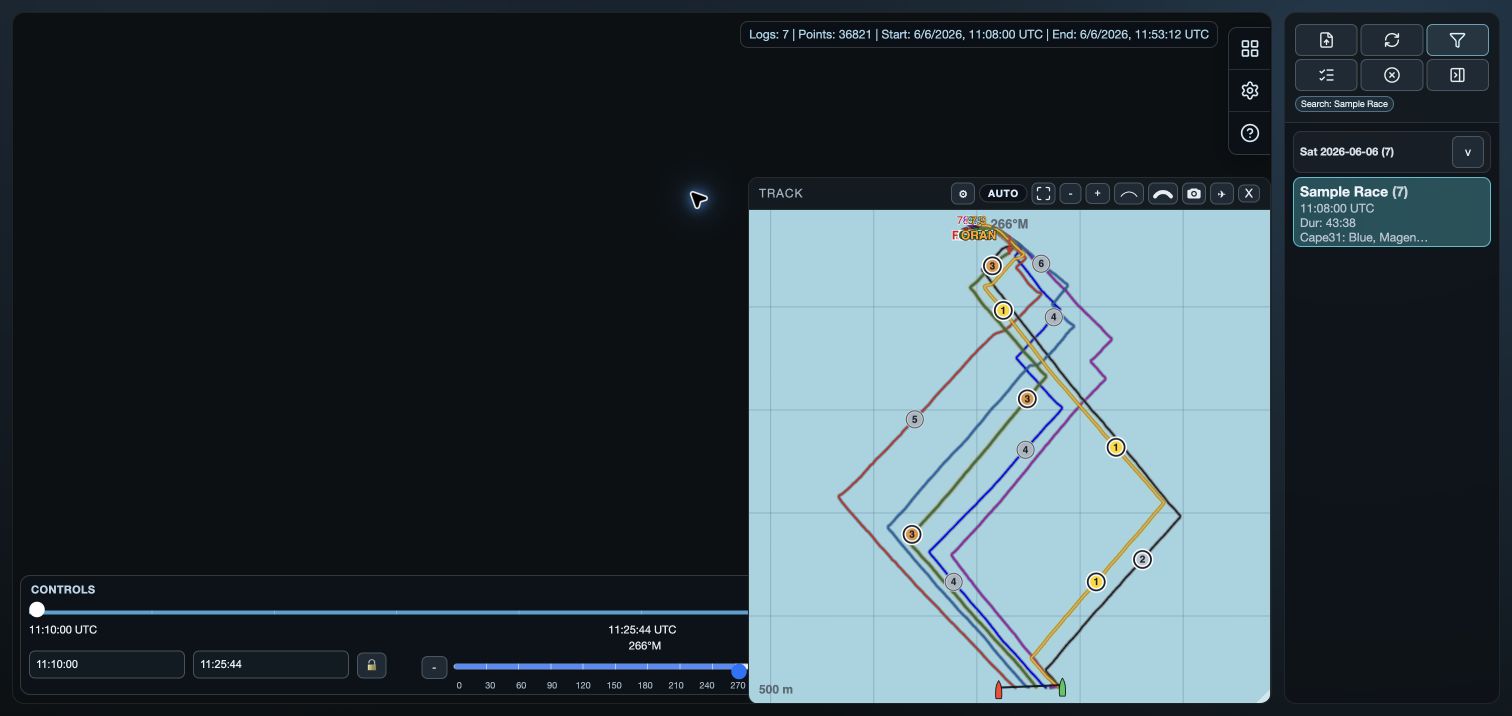
Open Library. Find the group named Sample Race and open it. On web and desktop, use the Imported logs panel. On mobile, use Library if Sample Race is present; sample availability has not yet been checked on every device. You can otherwise practise with your own supported logs.
Open the complete group, then use Windows on web/desktop or the view chooser on mobile to choose an analysis view. Track is a practical first view: it lets you see all boats together.
2. Read what you are seeing
An open fleet supplies the data for analysis. The time controls choose an interval within those open logs; filters further limit the data shown by compatible analysis views. Neither action means that a Library row was selected for management.
- Use Track to compare where boats sailed.
- Open Graph or Table from Windows on web/desktop or the view chooser on mobile.
- Return to Library when you want to add, close, edit or organise stored logs.
3. Finish the practice session
Close the Sample Race logs from Library, or use Close all where it is available. Closing removes logs from the current analysis session and leaves their Library records and files available for another time.
If you choose Delete instead, that is different: it removes stored files after confirmation. On iOS, deleted Sample Race logs are explicitly not reinstalled automatically.