
What Values is for
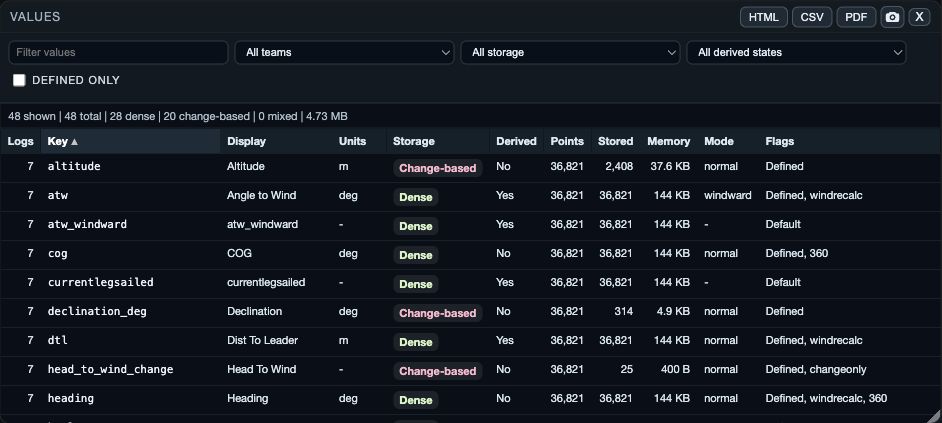
Values lists the measurements available in the open logs. Each row gives the value name, unit, source type and coverage, so you can check which boats can be compared before choosing a chart metric.
1. Find a value
1. Open Values from Windows on web/desktop, or the workspace panels menu or Choose windows on native. 2. Use Filter values to search by key or displayed name. 3. Narrow the list by team or log if needed. 4. Use Storage, Derived, and Defined only to narrow the inventory. 5. Read the row before selecting the value in another analysis view.
- Logs or team identifies which open logs contribute the value.
- Key is the app’s short value name; Display and Units help identify the measurement.
- Storage and Derived describe how the value is supplied or calculated.
- Points, Stored, and Memory help explain coverage and size; they do not say whether a value is tactically meaningful.
2. Compare the inventory carefully
Select a table heading to sort by Logs, Key, Display, Units, Storage, Derived, Points, Stored, Memory, Mode, or Flags. Sort by Key or Display to find a name; sort by Points to investigate coverage; sort by Units before comparing a measurement between logs.
If a row is marked derived, use the corresponding analysis view to understand the result rather than treating it as a directly recorded sensor channel. If a value is missing for a boat, choose a metric that all comparison boats share or report the limitation.
If the value you need is missing
- Clear search and filters, then try the displayed name and the key.
- Check whether the boat is open, rather than only selected in Library.
- Change the team/log filter to All before deciding that the value is absent.
- Check Defined only; turn it off to see every listed value.
- If only one boat has the value, choose a common metric for a direct fleet comparison or state the coverage limitation.