
Before you import
Keep a copy of the original recording. SailViewer imports a file into its Library and keeps an imported copy in the Library; this is separate from opening a log for analysis.
Supported file extensions are SW2, legacy SLV, VKX, CSV, GPX, KML, NMA/NMEA, VTK, FIT and ZIP. CSV support is for recognised provider layouts, not an assurance that any spreadsheet will import.
1. Choose the files
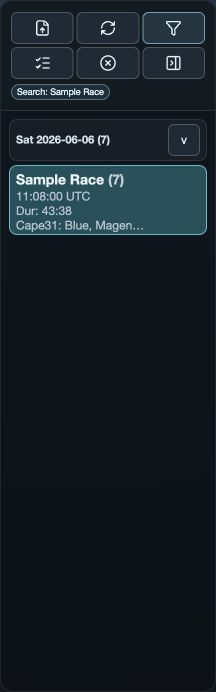
Open Library and choose Import logs on web/desktop or Import Log on a native app. Select one or more recordings from the system file picker. On mobile, opening or sharing a supported file leads to an Import review rather than an automatic import.
On web/desktop, set a Log Storage folder if the host requests one so imported logs remain available in Logs.
2. Review the boats before committing
Check the file name, detected format, log title, team and boat number. Native review also presents an identity or colour choice for editable boat outputs. SW2 identity is preserved and read-only in the native review.
- Give boats clear, distinct identities before comparing them.
- Check duplicate boat-number notices: they do not necessarily prevent importing, but can make fleet comparison confusing.
- Use Cancel if the source or identities are wrong. Cancel dismisses the review without committing the batch.
3. Import, then open the logs
Choose Import and wait for the result. If a source is recognised as an existing import, SailViewer can reuse the existing Library record rather than creating another copy; review the outcome instead of repeatedly importing the same file.
Open Library, clear any restrictive search or filters, and open the intended boat logs. Importing stores a Library record; opening loads that record into the current analysis session.