
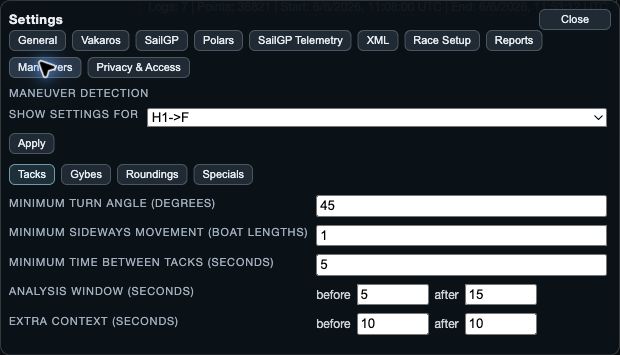
Detection and analysis are different settings
Minimum turn angle, minimum sideways movement and minimum time between manoeuvres decide whether a turn is detected as a tack or gybe. Analysis window and Extra context decide how much time is examined around a detected event.
Changing detection can add, remove or move the events shown in Maneuvers List and Summary. Changing the analysis window or context changes how an event is measured and displayed. Neither setting edits the raw sailing log.
Tacks
- Minimum turn angle: require enough direction change to count as a tack.
- Minimum sideways movement: reject turns that do not move far enough across the boat’s course.
- Minimum time between tacks: prevent a short sequence from being counted repeatedly.
- Analysis window before/after: the measured part around the event.
- Extra context before/after: additional surrounding sailing for visual comparison.
Start with the defaults, inspect a few obvious and borderline tacks in the List, then make one adjustment at a time. A stricter rule may remove false detections but can also remove genuine short tacks.
Gybes and roundings
Detect gybes enables or disables ordinary gybe detection. Gybes have their own minimum turn angle, sideways movement, gap, analysis window and context. Do not copy tack thresholds automatically: downwind geometry and data quality can be different.
Roundings expose analysis-window before/after settings. These define the context measured around already available ordinary rounding events; they do not turn every nearby path bend into a saved course mark.
Apply, Save and Cancel
On web and desktop, use Apply after editing the selected manoeuvre settings. On native, settings are drafted: Save commits the draft and Cancel keeps the previous saved settings.
After committing a detection change, reopen or refresh the manoeuvre analysis views and inspect the resulting event list. Do not compare a new threshold against an old screenshot without recording the change.